
Using Glow for activities such as accessing e-sgoil on an Empowered Learning iPad is possible but requires a little bit of initial setup and thought when using links to access resources and meetings.
The important things to know are:
- In a web browser such as Safari on the iPad, by default, it is not possible to be signed into both an Edinburgh M365 and Glow at the same time. However, there are steps that can be taken to do this by setting up a different environment for Glow.
- It is possible to be signed into both Edinburgh M365 and Glow at the same time in the iPad Teams app.
There are several different methods to setup a separate environment for Glow.
Creating a Glow environment
Method 1: Creating a Glow web clip
This method creates a web clip that allows learners to sign into Glow and access all the resources within in it, without affecting their Edinburgh M365 sign-in. A web clip works in a similar way to an app, putting an icon on the home screen.
This video for learners explains how to do it.
Method 2: Using a second browser
On Empowered Learning iPads, it is possible to download the Edge browser in addition to the default Safari browser. Once both browsers are installed, learners can choose to use one browser for Edinburgh M365 and the other browser for Glow. It does not matter which browser is used for which service, this can be personal preference but it is recommended that the default browser should be the one that is signed into Edinburgh M365. Safari is the default browser unless the setting is changed.
Method 3: Using Safari profiles
iPads that have been updated to iPadOS 17 can create multiple profiles in Safari. Profiles keeps logins separate, similar to method 2 above, but using only Safari.
To create a profile
- Go Settings > Safari
- Scroll to Profiles
- When done for the first time, only a button called New Profile is visible. Tap the button to create a new profile.
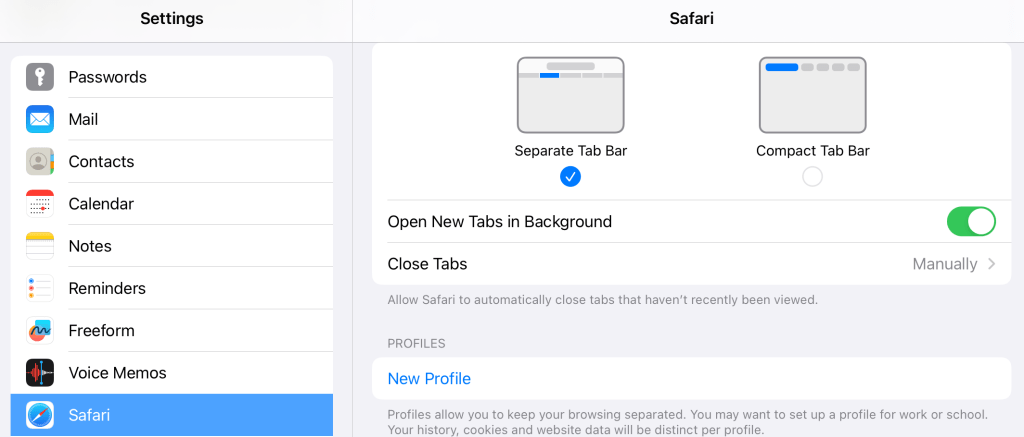
- Give the profile a name and optionally, select an icon and colour. Tap Done.

After completing the steps above, the new profile appears along with another profile called Personal. The Personal profile is all of the existing browsing history and sign-ins. The existing Edinburgh M365 sign-in will now be in the Personal profile.
Switching to a profile
To switch to a profile
- Launch Safari
- Tap the Tabs icon in the top right
- Tap the Profile menu and then chose the appropriate profile. Tap Done. Safari will switch to that profile.
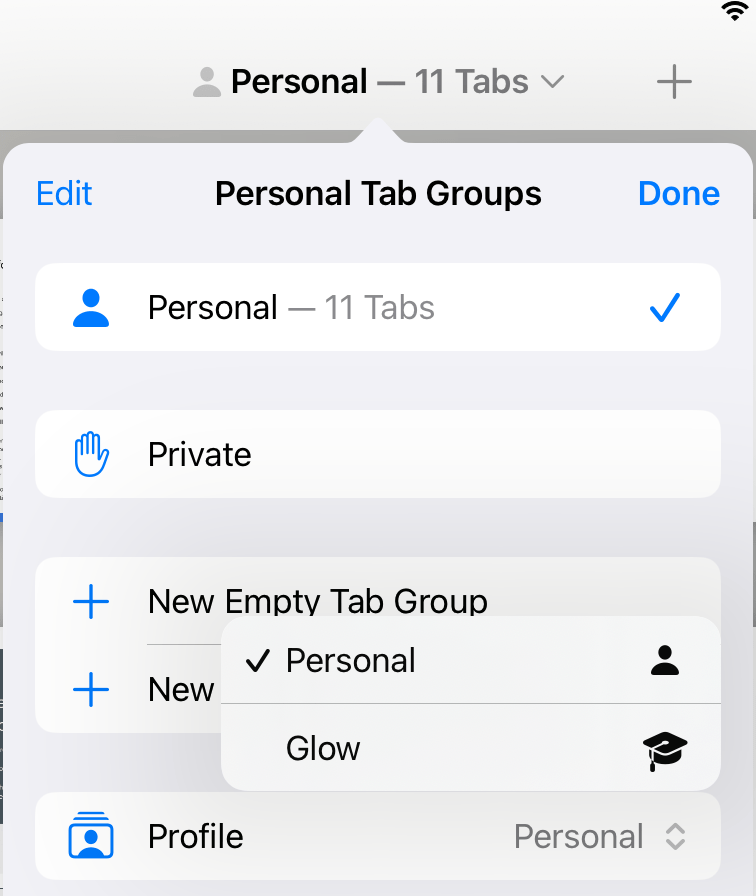
After selecting the Glow profile, it is possible to sign in to Glow without it affecting the Edinburgh M365 sign-in. Switch back to the Personal profile to access Edinburgh M365.
Important note: When tapping a link outside of Safari (such as from Teams) that opens in Safari, the current profile will be used to open the link. This can cause problems if the link requires Edinburgh M365 but opens in the Safari Glow profile.
To avoid this, only switch to the Glow profile when required and switch back after the Glow activity is finished.
Accessing URLs
When opening URLs using methods 2 and 3, it can sometimes be difficult to ensure the URL opens in the correct browser or profile.
It can be easier to copy URLs first before opening Safari and selecting the appropriate profile if required. Then paste the URL into the browser. To copy URLs on an iPad, long-press the link and then select Copy Link.
Accessing Teams
It is possible to be logged into both Edinburgh M365 and Glow in Teams. Like the Safari profile method above, users must switch to the correct profile in Teams before tapping on any links that will open Teams – such as Team meetings.
This video explains how to sign into multiple accounts in Teams on both desktop teams and iPad.
 Edinburgh Learns Digital | City of Edinburgh Council