
Click below to find out how the iPad can support dyslexic learners:

Tips and Tricks
Here are some tips for getting the most from your iPad!

| What | Why | How |
|---|---|---|
| Split Screen | Open two apps side by side, helpful for when you need to refer to something like a video or picture while you are typing | Tap the … at the top of the screen and select your view |
| Organising Apps | Find things easily on your iPad, such as apps you use the most | Hold your finger on an app until it wobbles to then move the apps around the screen to where you want them to go. You can also hold one app over another to create a folder. |
| Siri | Use your voice to either find things on your iPad or on the internet | Turn on “Hey, Siri…” by going to the Settings cog, scrolling to Siri on the righthand side and turning on in “Talk to Siri”. You can then use Siri to search for things on your iPad or on the internet. |
| Dictation | Speak your words/sentences and the iPad will turn it into writing | Tap on the microphone icon on your keyboard, say what you want to write and then tap the microphone to finish. You can also dictate punctuation marks. Dictation improves the more you use it as it learns how you speak! |
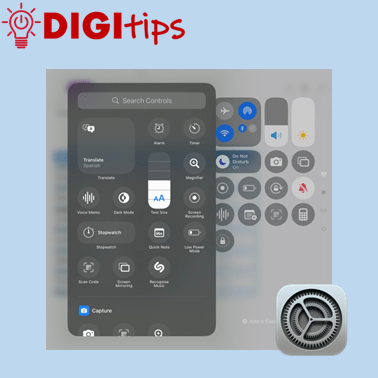
| Control Centre | Quickly find the things that help you | Swipe down from the top right of the screen, tap the + sign and choose your controls. Click here for a video. |
iPad Accessibility Settings
Changing the Settings on your iPad can really help you access your learning!

| Display and Text Size | How it helps |
|---|---|
| Bold and Larger Text | Easier to read |
| Increase Contrast | Makes text clearer |
| Smart Invert | Less glare |
| Classic Invert | Easier to read |
| Colour Filters | Reduces visual stress |
| Spoken Content | How it Helps |
|---|---|
| Speak Selection | Reads highlighted text aloud |
| Speak Screen | Reads entire screen aloud when you swipe two fingers down from the top |
| Typing Feedback | Reads aloud text as you type to help you check what you have written |
Microsoft Apps – Immersive Reader
Immersive Reader is available in most Microsoft Office Apps under the View menu or where you see the logo with the booklet and the speaker.
For example, in Teams it is under the … next to each post.

Immersive Reader has three main menus once open:
| Appearance | Change the text size, font, spacing and colour scheme of text. This only changes it in Immersive reader, not on the original document. |
| Grammar | Shows syllables and highlights parts of sentence structure |
| Reading | Offers line focus, picture dictionary and translation. Tap on a word to see the translation or picture. Use the arrows on the right to scroll in line focus |
Immersive Reader can also read the text aloud to you. Just tap the Play button at the bottom of the screen. You can change the voice and speed by tapping on the settings next to the play button.
Watch this ClickView Video for an in-depth tour of the Immersive Reader tool.
Audiobooks
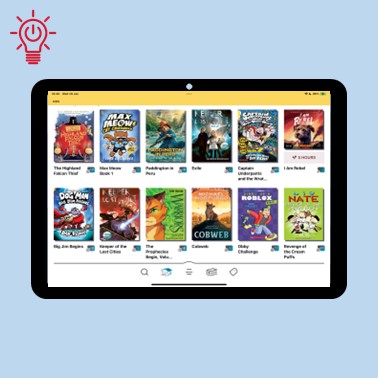
Listening to audiobooks is a great way to read, and there are several ways you can access these for free on the iPad.
Libby App
The Libby app has a range of audiobooks that you can borrow if you have a library card.
Calibre
Calibre is an free audiobook streaming service
RNIB Bookshare
A whole range of audiobooks can be found here, free to all UK schools Information for Parents | UK education collection (rnibbookshare.org)
Hardware
Keyboard
iPads can also use wired or Bluetooth keyboards, these can make it easier to type.
Headphones and microphones
These can make it easier to dictate or to listen to text being read aloud.
If you think you might benefit from either of these, just ask a teacher and they should be able to source them for you.

Digitips
We make short explainer videos called Digitips.
We recommend these ones for learners with Dyslexia:
 Edinburgh Learns Digital | City of Edinburgh Council