
Tag: Accessibility
-
Supporting Reluctant Writers with Voice Memos and Pages
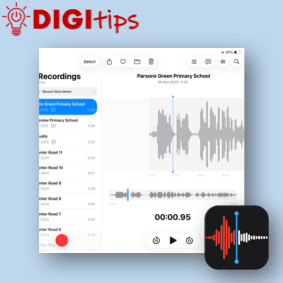
Read more: Supporting Reluctant Writers with Voice Memos and PagesThis DigiTip shows how to use Voice Memos to record and transcribe ideas. This feature is available on Gen 10 (P7) and Gen 11 (P6) iPads. This feature can allow learners to use their voice to create written content. You can record your voice in Pages, Numbers and Keynote or dictate text but you are…
-
Scanning Text into your Notes App
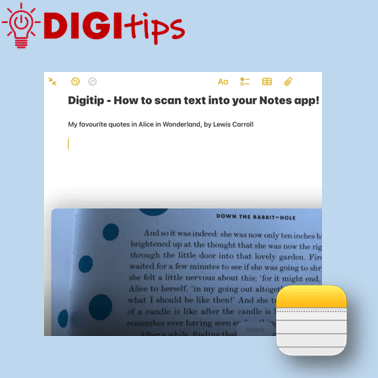
Read more: Scanning Text into your Notes AppIn this Digitip, you will learn how to scan text directly into your Notes app. This feature works with both handwriting and print. One scanned, you can then take advantage of any in-built accessibility features you have already set up on your iPad! Recorded on iOS 18.2.3 Watch the video
-
Assistive Access
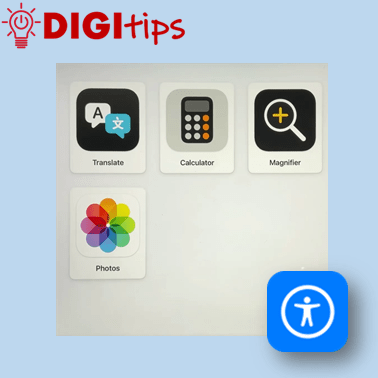
Read more: Assistive AccessThis Digitip will show you Assistive Access on the iPad; How to set it up, choose specific apps and turn it off. This feature maybe useful to learners who find it difficult to use the iPad or specific apps. It can: Watch the video
-
Copy Printed Text to Immersive Reader with the Camera App
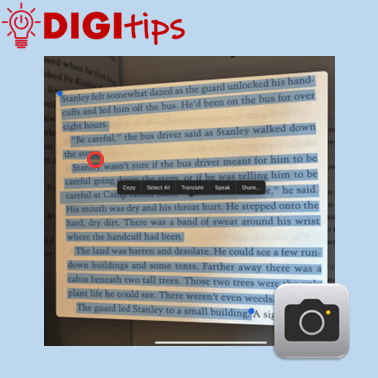
Read more: Copy Printed Text to Immersive Reader with the Camera AppThis Digitip shows you how to use the Camera app to copy printed text into Immersive Reader In this quick video, you’ll learn how to use the Camera app’s Live Text feature to copy printed text into Immersive Reader. This is a powerful tool for making text more accessible by converting printed or handwritten words…
-
Using Guided Access Mode
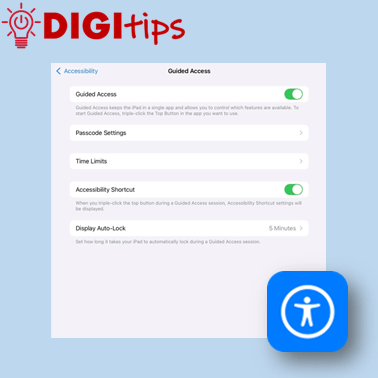
Read more: Using Guided Access ModeThis Digitip shows you how to use Guided Access mode on the iPads. In this quick video, you’ll learn how to set up Guided Access mode. This is a powerful tool for keeping learners focussed by locking them into a specific app. This can be personalised and set up in a way that allows you…
-
Independent learning with verbal instructions.
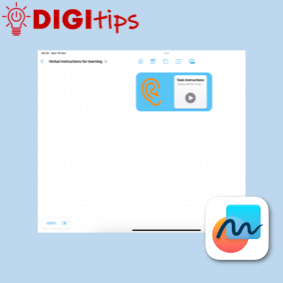
Read more: Independent learning with verbal instructions.This Digitip shows you how to use voice instructions in Freeform, Keynote, Pages and Numbers. Accessibility: recorded instructions support learners that like listening to instructions. It allows all students to be able to replay instructions multiple times and for learners with an additional learning need it reduces the reliance on text, making tasks more inclusive.…
-
Changing text size on your iPad
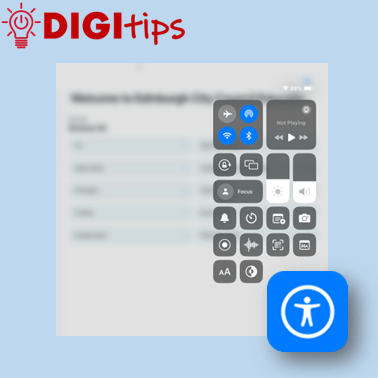
Read more: Changing text size on your iPadThis Digitip will show you how to quickly change dynamic text and bold menu texts on your iPad. A really useful function for many users. Watch the video
-
Using Safari’s Built-In Reader Tools
Read more: Using Safari’s Built-In Reader ToolsThis Digitip looks at using the built-in accessibility functions found in Apple’s Safari web-browser. The Reader tool is a fantastic way to streamline a web page and focus on essential content. This gives learners the option to personalise with features including changing font size, page colour and font. This feature is also a useful way…

-
Using the Drag and Drop Feature to Take Notes
Read more: Using the Drag and Drop Feature to Take NotesUse the iPad’s drag and drop features to quickly take notes between Safari and numerous word processing apps. This is a great way to quickly take notes when completing a research task. Learners can select and hold onto any content that it is useful and then navigate to their favourite notetaking app to record the…

-
Toggle Colour Filter to create a digital overlay
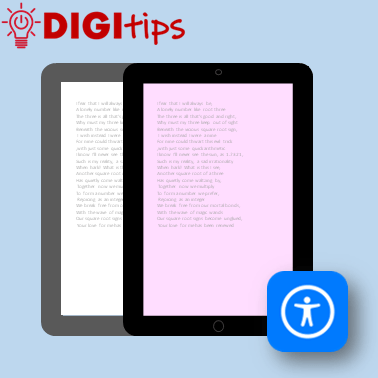
Read more: Toggle Colour Filter to create a digital overlayCreate a digital overlay for your iPad that you can turn on and off as you please. This video shows you how to turn on the Colour Filter inside Accessibility settings of your iPad and utilise the Accessibility shortcut to toggle the filter on and off. Watch the video
-
Use Microsoft Translator to live translate
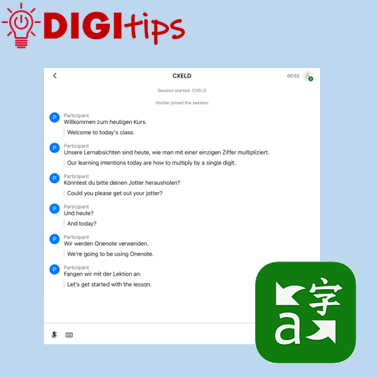
Read more: Use Microsoft Translator to live translateTranslation tools can be invaluable for teachers and learners. This video shows how you can use the app Microsoft Translate on iPad to live translate your lessons with your pupils in many different languages. Watch the video
-
Typing Feedback
Read more: Typing FeedbackThis video explains how typing feedback works. This is one of the many tools found in the accessibility settings on the iPad. Watch the video.

-
Live Text Translation
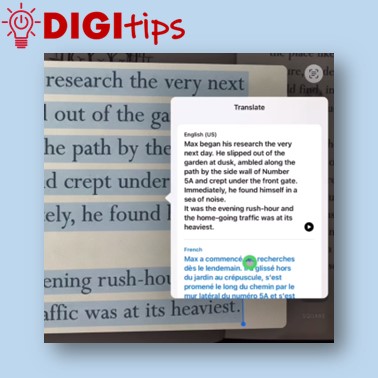
Read more: Live Text TranslationThis video explains that the Live Text tool is available in certain apps on the iPad and can be used to select text and translate it easily. The video also explains what you can do if your chosen, target language is not available by sending it to OneNote and using the Immersive Reader tool. Watch…
-
Speak text with a Scottish voice
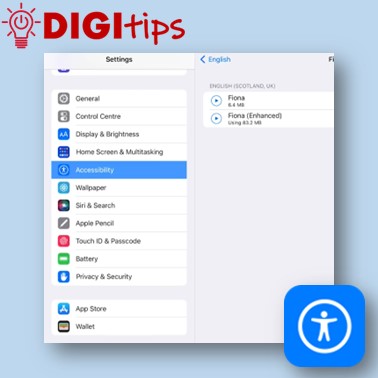
Read more: Speak text with a Scottish voiceThis video shows you how to get your iPad to read any text in any application back to you, using a Scottish voice. Watch the video.
 Edinburgh Learns Digital | City of Edinburgh Council