
Tag: Digi-Learner
-
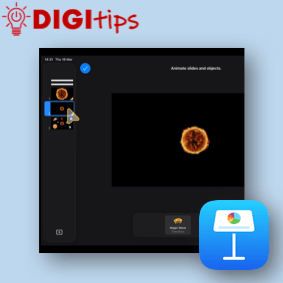
Animate Changes with Magic Move
Read more: Animate Changes with Magic MoveLearn how to use Magic Move in Keynote to quickly animate changes between slides. This simple feature automatically creates smooth transitions when objects move, resize or change position. We explain how to: • Duplicate a slide to create an animation sequence• Move and adjust objects between slides• Apply the Magic Move transition• Build simple animations…
-
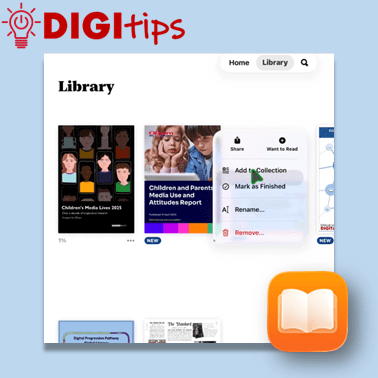
Organise PDFs in Apple Books
Read more: Organise PDFs in Apple BooksThis Digitip explains how to save and organise pdfs using Apple Books on your school iPad. Useful for study materials, gathering research, collecting project information and lots more. We explain how to: Suitable for both staff and learners, and recorded February 2026 on iOS 26. Watch the video here
-
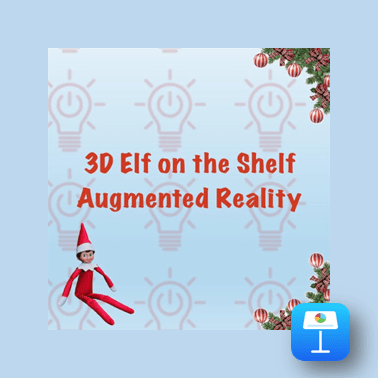
AR Elf on the Shelf
Read more: AR Elf on the ShelfIn this Christmas Cracker pupils will use an Augmented Reality scan of an Elf on the Shelf to be creative in Keynote. This is suitable for both Shared and 1:1 devices. Watch the video. Please do feel free to share any of your pupils’ creations with us on this Padlet! Open the Padlet page to share…
-
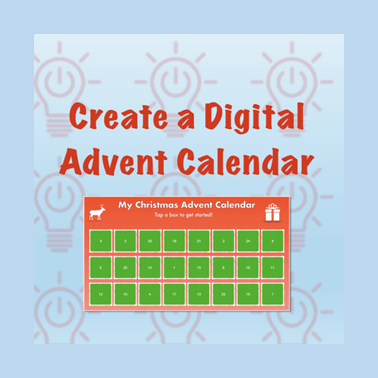
Digital Advent Calendars
Read more: Digital Advent CalendarsIn this Christmas Cracker pupils will learn how to use a variety of Keynote functions including: links, animations, shapes, formatting tools, and more. Learners have the opportunity to create their own digital advent calendar. The video example looks at creating one with twenty-four days, but learners can make smaller countdowns. Watch the video. Please do…
-
Using Microsoft Reflect via a Browser
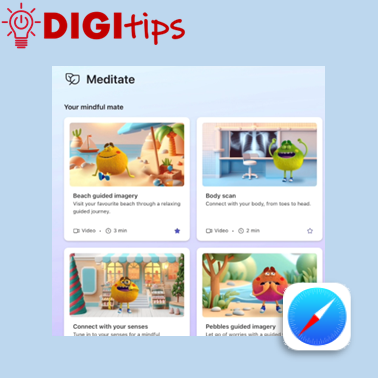
Read more: Using Microsoft Reflect via a BrowserIn this Digitip, you will learn how to access the tools of Microsoft Reflect through the browser. This makes it ideal for younger learners who can still take part in Reflect check-ins by scanning a QR code instead of having to sign-in to Teams. The Digitip also explores how you can access all the Mindfulness…
-
Using the Book & Quill for Writing tasks in Minecraft Education
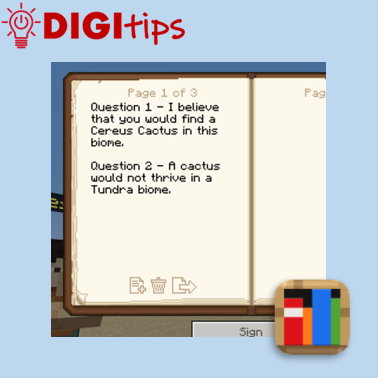
Read more: Using the Book & Quill for Writing tasks in Minecraft EducationIn this Digitip, you will learn how to use the Book & Quill for Writing tasks in Minecraft Education. This creates an immersive writing opportunity for learners to explore a Minecraft Education world or task, which can then be exported to a PDF to save in Files or Class Notebook. Recorded on iOS 18.4.1 Watch…
-
Saving Webpages as PDFs
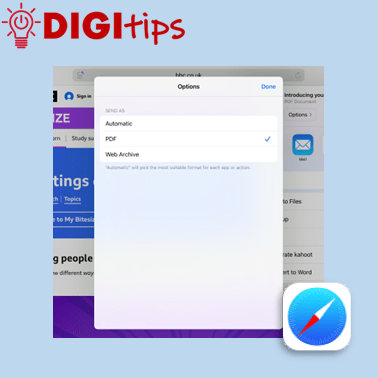
Read more: Saving Webpages as PDFsIn this Digitip, you will learn how to save webpages as PDFs. This makes it a useful tool in building a bank of study material which you can save to your OneDrive, Class Notebook or Files app. Recorded on iOS 18.4.1 Watch the video.
-
Scanning Text into your Notes App
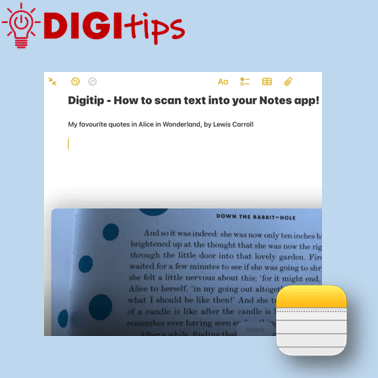
Read more: Scanning Text into your Notes AppIn this Digitip, you will learn how to scan text directly into your Notes app. This feature works with both handwriting and print. One scanned, you can then take advantage of any in-built accessibility features you have already set up on your iPad! Recorded on iOS 18.2.3 Watch the video
-
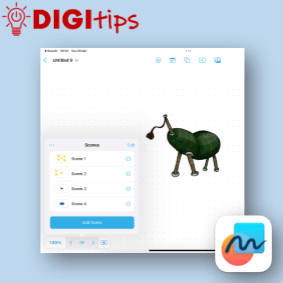
Using scenes in Freeform
Read more: Using scenes in FreeformThis digitip shows you how to create, manage and navigate a freeform board using scenes. This is a really powerful tool to create range of different resources you can use in the classroom. Scenes helps present new material in small steps, thus reducing cognitive load for the learners. Sharing a Freeform board can be a…
-
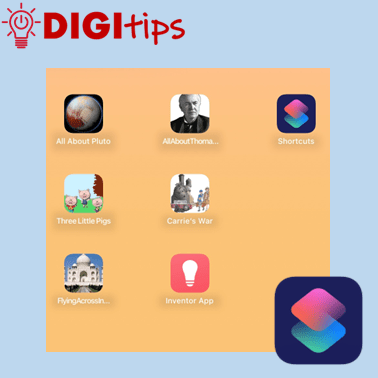
Using the Apple Shortcuts app to create custom app icons for your Keynote files
Read more: Using the Apple Shortcuts app to create custom app icons for your Keynote filesUnlock the Power of Apple Shortcuts! Learn how to create custom app icons for your Keynote files in just a few simple steps. You may know that you can personalise your iOS home screen, but this guide will show you how to create easy access to completed projects, allowing both learners and staff to showcase…
-
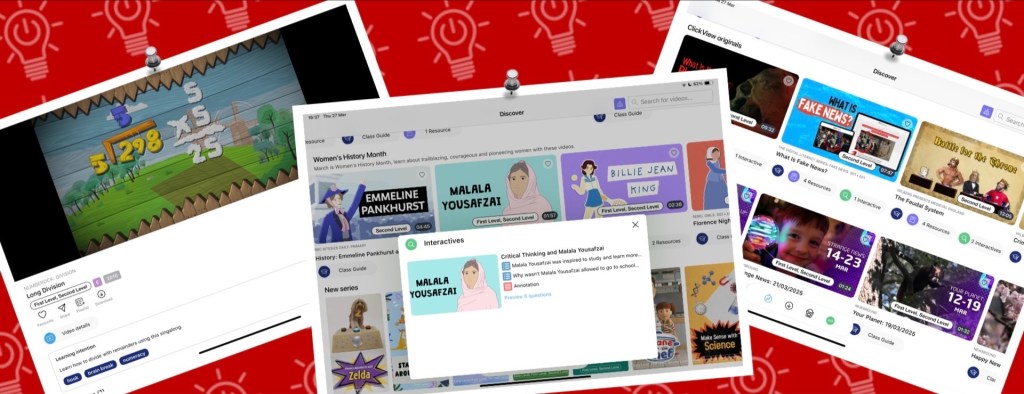
Online Skill Course: Enhancing Teaching & Learning with ClickView
Read more: Online Skill Course: Enhancing Teaching & Learning with ClickViewClickView offers a range of features to enhance teaching and learning in our classrooms, whether by supporting learners with engaging, specially curated pre-made video content, hosting our own educational videos, or assessing understanding through interactive quizzes. Through the iPad app or a web browser, ClickView is a secure and ad-free resource that can seamlessly be…
-
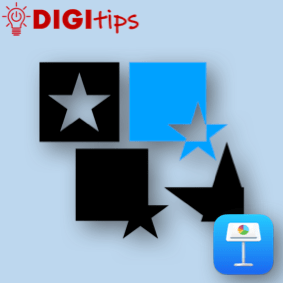
Creating custom shapes in Keynote
Read more: Creating custom shapes in KeynoteIn this digitip, learn how to create custom shapes in Keynote and add them to your own shapes library. This step-by-step guide shows you how to create your own custom shapes, save them to your shapes library and then use them in a presentation. Once you have done this in Keynote you can do the…
-
Creating a Quick Links Toolbox in OneNote & Saving Websites to the Home Screen
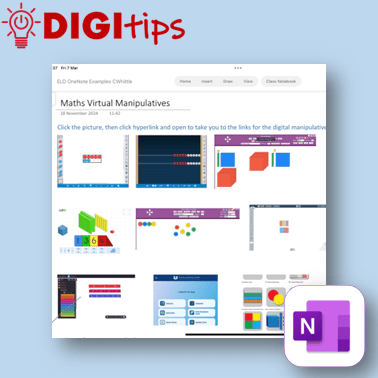
Read more: Creating a Quick Links Toolbox in OneNote & Saving Websites to the Home ScreenIn this digitip, learn how to create a quick-access page of resource links in OneNote/Class Notebook for your learners. This step-by-step guide shows you how to take screenshots of websites, insert them into OneNote, and add hyperlinks—making it easy for learners to access key tools anytime from the Content Library. The example uses virtual maths…
-
Rehearse with Coach on PowerPoint
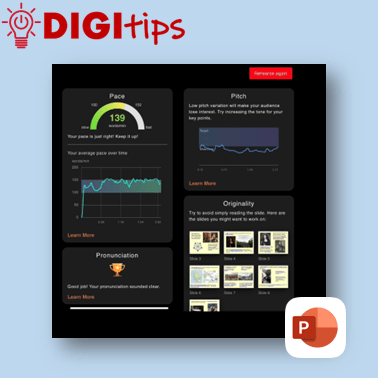
Read more: Rehearse with Coach on PowerPointA quick and easy Digitip, demonstrating how to use the ‘Rehearse with Coach’ feature available through PowerPoint on the iPad. This is a handy feature that gives learners direct specific feedback about their delivery of content through PowerPoint. This can support learners when preparing for class talks or sharing their learning, giving them handy prompts…
-
Tab Groups on Safari
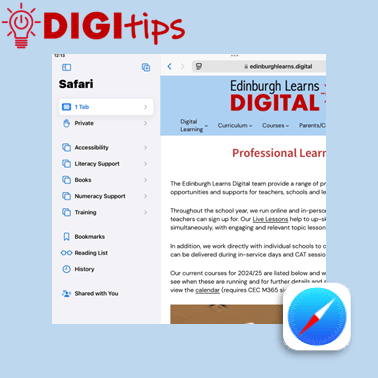
Read more: Tab Groups on SafariA quick and easy Digitip, demonstrating how to organise websites into Tab Groups on Safari. Tab Groups are folders that keep tabs (open websites) all in one place, making them easier to find again later. This is a simple way to group together sites to then share with learners or with your staff team. Recorded…
-
ClipChamp on M365
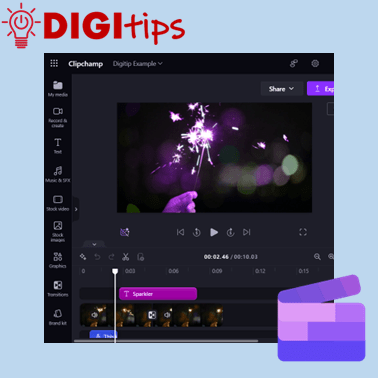
Read more: ClipChamp on M365This Digitip will show you how access and use the video editor ClipChamp on Microsoft 365. This video tool replaces the now depreciated Video Editor in Windows. ClipChamp is available for desktop users through Microsoft 365. Watch the video
-
Copy Printed Text to Immersive Reader with the Camera App
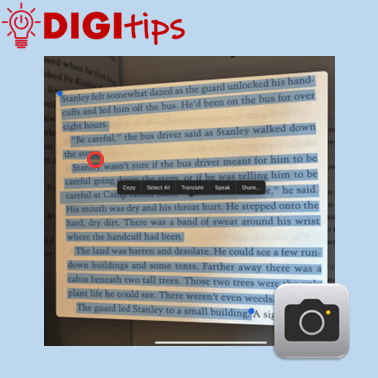
Read more: Copy Printed Text to Immersive Reader with the Camera AppThis Digitip shows you how to use the Camera app to copy printed text into Immersive Reader In this quick video, you’ll learn how to use the Camera app’s Live Text feature to copy printed text into Immersive Reader. This is a powerful tool for making text more accessible by converting printed or handwritten words…
-
Using Guided Access Mode
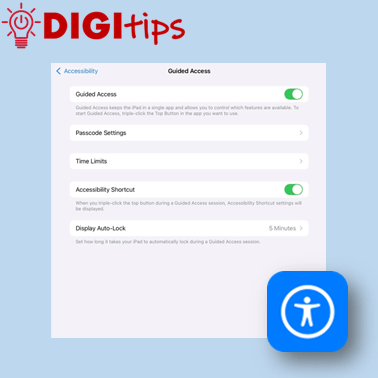
Read more: Using Guided Access ModeThis Digitip shows you how to use Guided Access mode on the iPads. In this quick video, you’ll learn how to set up Guided Access mode. This is a powerful tool for keeping learners focussed by locking them into a specific app. This can be personalised and set up in a way that allows you…
-
Creating Podcasts with GarageBand
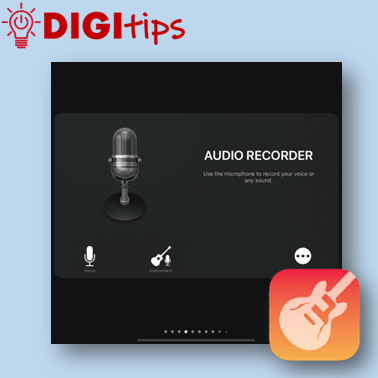
Read more: Creating Podcasts with GarageBandThis Digitip shows you how to use GarageBand to create Podcasts. In this quick video, you’ll learn how to change GarageBand settings to start creating podcasts with your learners. Whether you’re new to GarageBand or just need a refresher, this is your starting point for using podcasts to support teaching, learning and assessment in your…
-
Independent learning with verbal instructions.
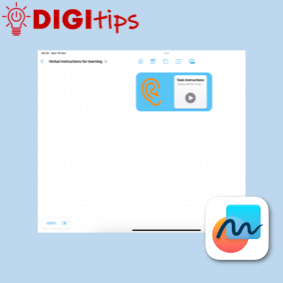
Read more: Independent learning with verbal instructions.This Digitip shows you how to use voice instructions in Freeform, Keynote, Pages and Numbers. Accessibility: recorded instructions support learners that like listening to instructions. It allows all students to be able to replay instructions multiple times and for learners with an additional learning need it reduces the reliance on text, making tasks more inclusive.…
 Edinburgh Learns Digital | City of Edinburgh Council