
Category: Digitips
-
Animate Changes with Magic Move
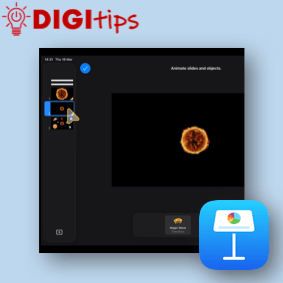
Learn how to use Magic Move in Keynote to quickly animate changes between slides. This simple feature automatically creates smooth transitions when objects move, resize or change position. We explain how to: • Duplicate a slide to create an animation sequence• Move and adjust objects between slides• Apply the Magic Move transition• Build simple animations…
-
Using Teams Chat & Setting Quiet Hours
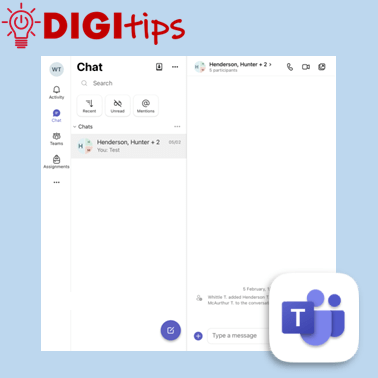
This video explains how staff can use Microsoft Teams to send messages to colleagues, as well as how to set quiet hours across Teams and Outlook. Helpful for staying connected during the working day while also protecting your personal time. We explain how to: Suitable for staff across all settings, and recorded February 2026 on…
-
Using Praise in Teams
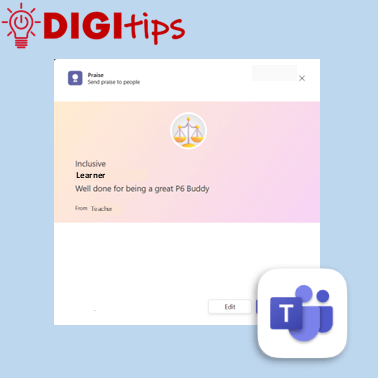
This Digitip shows how to use the Praise function inside Microsoft Teams A great way to complement the feedback, certificates and awards you give out in school. Watch the video
-
Organise PDFs in Apple Books
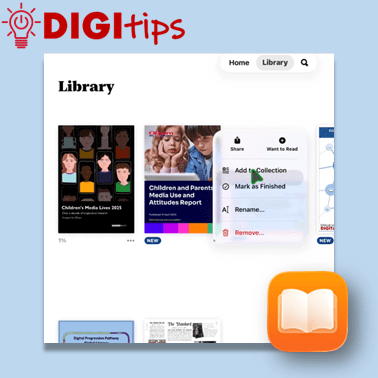
This Digitip explains how to save and organise pdfs using Apple Books on your school iPad. Useful for study materials, gathering research, collecting project information and lots more. We explain how to: Suitable for both staff and learners, and recorded February 2026 on iOS 26. Watch the video here
-
Making Learning Visible with Custom Sized Media Placeholders
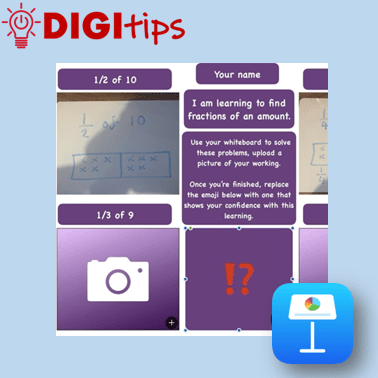
This Digitip explores how media placeholders in Keynote and Pages can be created for simple, child-friendly templates that support learning and pupil voice. You’ll see examples of effective media placeholders in action across maths, reading and literacy, before learning how to design your own custom-sized placeholders using shapes. These templates make it easy for young…
-
Formative Assessment with Teams Quizzes
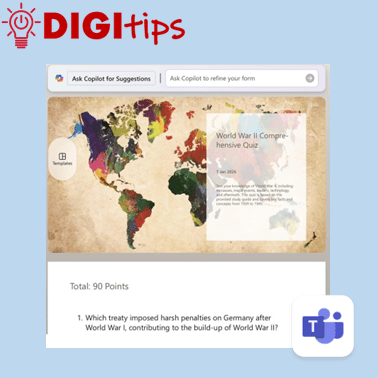
This DigiTip shows how to use the Quizzes feature within Teams to create assessments based on class learning materials. This quickly and easily syncs with Microsoft Forms and is a useful tool for personalised formative assessment. Quizzes allows you to: Watch the video.
-
Accessing Edinburgh Learns
This Digishort is for Edinburgh education staff.It shows how you can access the Edinburgh Learns site for staff. The Edinburgh Learns Site is a secure area where schools can access policies, procedures and resources to support learning and teaching. Watch the video
-
Supporting Reluctant Writers with Voice Memos and Pages
This DigiTip shows how to use Voice Memos to record and transcribe ideas. This feature is available on Gen 10 (P7) and Gen 11 (P6) iPads. This feature can allow learners to use their voice to create written content. You can record your voice in Pages, Numbers and Keynote or dictate text but you are…
-
Using Sketchbook as a Formative Assessment Tool
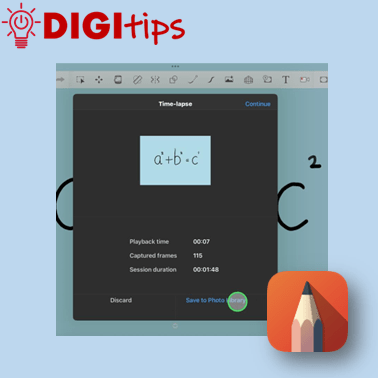
This DigiTip shows how to use a feature hidden within Sketchbook that can be used as a formative assessment or modelling tool: time-lapse! It can be a great tool to support creative and quick formative assessment in your classroom. You can: Watch the video
-
Using Groups in Class Notebook
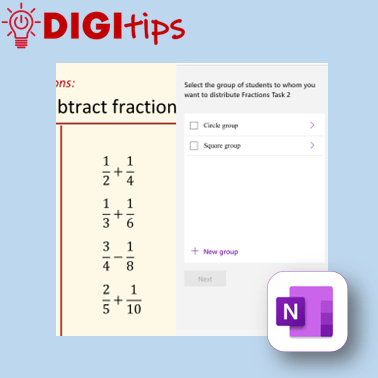
This Digitip shows how to use the Group Distribution function in OneNote ClassNotebook. A great tool to support differentiation in your classroom. Watch the video
-
Exit tickets using OneNote
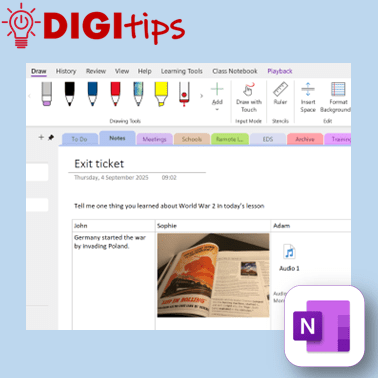
In this Digitip, you will learn how to create exit tickets in OneNote. OneNote has many options for creating exit tickets as well as options for how pupils can input their answers. In this video we have a look at the different ideas and how they can be used in class. Recorded on iOS Watch…
-
Using Microsoft Reflect via a Browser
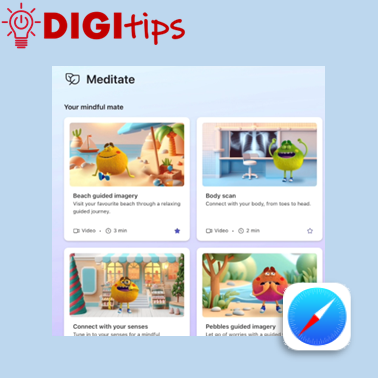
In this Digitip, you will learn how to access the tools of Microsoft Reflect through the browser. This makes it ideal for younger learners who can still take part in Reflect check-ins by scanning a QR code instead of having to sign-in to Teams. The Digitip also explores how you can access all the Mindfulness…
-
Create, Rename and Save a QR using Shortcuts
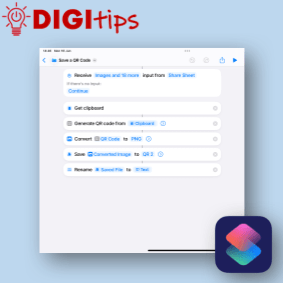
I don’t know about you but when I create a QR code it is only every used once because I can’t rename it. This QR code generator using Apple Shortcuts, allows you to write a short script that creates a QR code from the clipboard or runs from the share sheet in Safari. It will…
-
Using the Book & Quill for Writing tasks in Minecraft Education
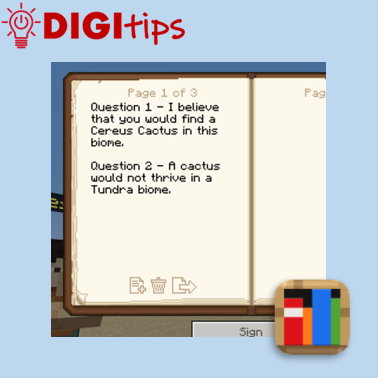
In this Digitip, you will learn how to use the Book & Quill for Writing tasks in Minecraft Education. This creates an immersive writing opportunity for learners to explore a Minecraft Education world or task, which can then be exported to a PDF to save in Files or Class Notebook. Recorded on iOS 18.4.1 Watch…
-
Saving Webpages as PDFs
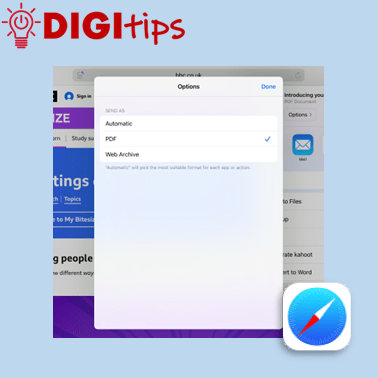
In this Digitip, you will learn how to save webpages as PDFs. This makes it a useful tool in building a bank of study material which you can save to your OneDrive, Class Notebook or Files app. Recorded on iOS 18.4.1 Watch the video.
-
Scanning Text into your Notes App
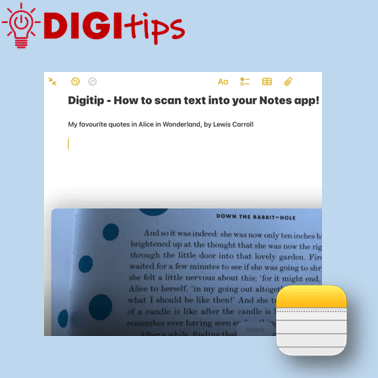
In this Digitip, you will learn how to scan text directly into your Notes app. This feature works with both handwriting and print. One scanned, you can then take advantage of any in-built accessibility features you have already set up on your iPad! Recorded on iOS 18.2.3 Watch the video
-
Assistive Access
This Digitip will show you Assistive Access on the iPad; How to set it up, choose specific apps and turn it off. This feature maybe useful to learners who find it difficult to use the iPad or specific apps. It can: Watch the video
-
Using scenes in Freeform
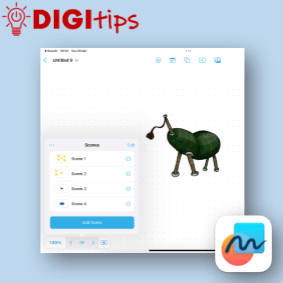
This digitip shows you how to create, manage and navigate a freeform board using scenes. This is a really powerful tool to create range of different resources you can use in the classroom. Scenes helps present new material in small steps, thus reducing cognitive load for the learners. Sharing a Freeform board can be a…
-
Using the Apple Shortcuts app to create custom app icons for your Keynote files
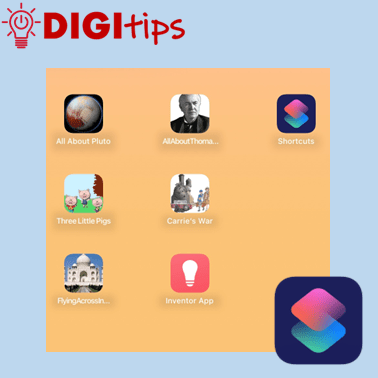
Unlock the Power of Apple Shortcuts! Learn how to create custom app icons for your Keynote files in just a few simple steps. You may know that you can personalise your iOS home screen, but this guide will show you how to create easy access to completed projects, allowing both learners and staff to showcase…
-
Embedding Media in OneNote
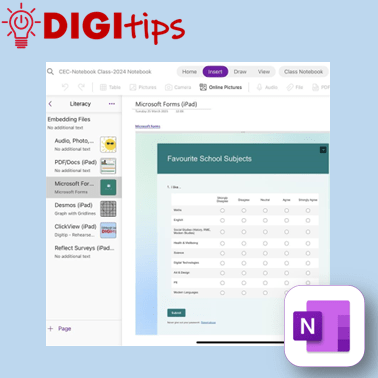
A quick and easy Digitip, demonstrating the different types of material that you can embed in your Class Notebook pages. You may be aware that you can add photos, audio, and documents – but OneNote has compatibility with a host of different types of embeddable media. This shows you how to embed content via the…
 Edinburgh Learns Digital | City of Edinburgh Council