
Category: Digitips
-
Schedule Posts on Teams
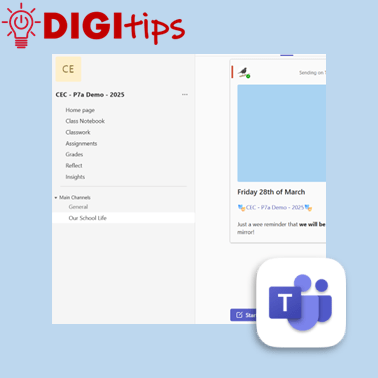
Another quick and easy Digitip, demonstrating how to schedule a post on your staff or class Team. This feature means that you can plan ahead, scheduling a post ahead of time and freeing up your headspace for something else! Find this feature on the desktop/laptop app or through the browser. Watch the video
-
Creating custom shapes in Keynote
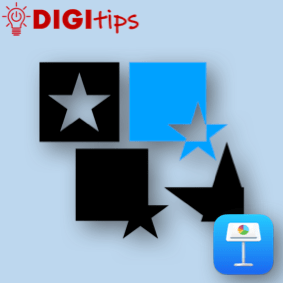
In this digitip, learn how to create custom shapes in Keynote and add them to your own shapes library. This step-by-step guide shows you how to create your own custom shapes, save them to your shapes library and then use them in a presentation. Once you have done this in Keynote you can do the…
-
Creating a Quick Links Toolbox in OneNote & Saving Websites to the Home Screen
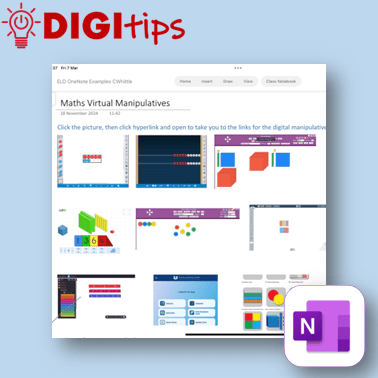
In this digitip, learn how to create a quick-access page of resource links in OneNote/Class Notebook for your learners. This step-by-step guide shows you how to take screenshots of websites, insert them into OneNote, and add hyperlinks—making it easy for learners to access key tools anytime from the Content Library. The example uses virtual maths…
-
Rehearse with Coach on PowerPoint
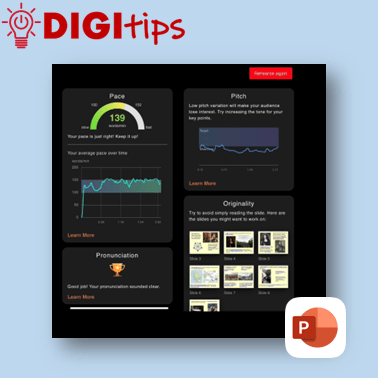
A quick and easy Digitip, demonstrating how to use the ‘Rehearse with Coach’ feature available through PowerPoint on the iPad. This is a handy feature that gives learners direct specific feedback about their delivery of content through PowerPoint. This can support learners when preparing for class talks or sharing their learning, giving them handy prompts…
-
Tab Groups on Safari
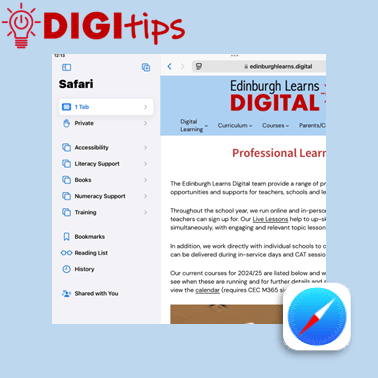
A quick and easy Digitip, demonstrating how to organise websites into Tab Groups on Safari. Tab Groups are folders that keep tabs (open websites) all in one place, making them easier to find again later. This is a simple way to group together sites to then share with learners or with your staff team. Recorded…
-
ClipChamp on M365
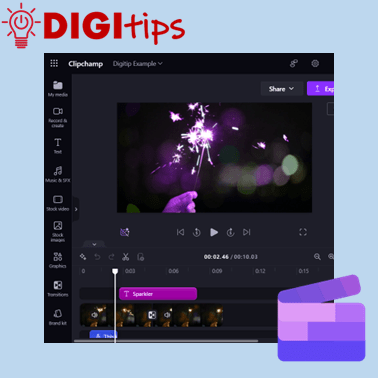
This Digitip will show you how access and use the video editor ClipChamp on Microsoft 365. This video tool replaces the now depreciated Video Editor in Windows. ClipChamp is available for desktop users through Microsoft 365. Watch the video
-
Copy Printed Text to Immersive Reader with the Camera App
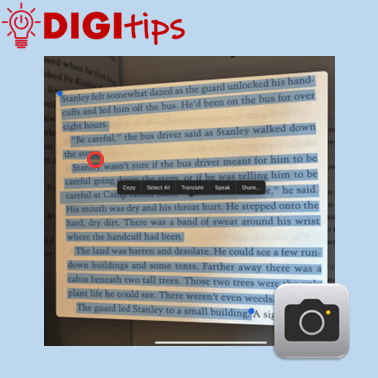
This Digitip shows you how to use the Camera app to copy printed text into Immersive Reader In this quick video, you’ll learn how to use the Camera app’s Live Text feature to copy printed text into Immersive Reader. This is a powerful tool for making text more accessible by converting printed or handwritten words…
-
Using Guided Access Mode
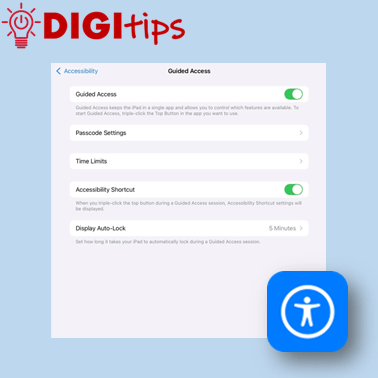
This Digitip shows you how to use Guided Access mode on the iPads. In this quick video, you’ll learn how to set up Guided Access mode. This is a powerful tool for keeping learners focussed by locking them into a specific app. This can be personalised and set up in a way that allows you…
-
Creating Podcasts with GarageBand
This Digitip shows you how to use GarageBand to create Podcasts. In this quick video, you’ll learn how to change GarageBand settings to start creating podcasts with your learners. Whether you’re new to GarageBand or just need a refresher, this is your starting point for using podcasts to support teaching, learning and assessment in your…
-
Independent learning with verbal instructions.
This Digitip shows you how to use voice instructions in Freeform, Keynote, Pages and Numbers. Accessibility: recorded instructions support learners that like listening to instructions. It allows all students to be able to replay instructions multiple times and for learners with an additional learning need it reduces the reliance on text, making tasks more inclusive.…
-
Using the Calculator App (iOS 18)
This Digitip explains some of the useful features that come with the iPad’s new calculator app that has been introduced with iOS 18. Some of these new elements include the ability to use a multitude of conversion features (including currency, units of measure, and temperature) and using the new maths notes feature. Whether you are…
-
Further Personalise your iPad’s home screen (iOS 18)
This Digitip explains how you can personalise the appearance of your iPad’s home screen even further, using new features introduced with iOS 18. Whether you are teacher or a learner, you can organise your apps to suit how you like to work. While the iPad is yours, it is great practice to adapt it to…
-
Personalise the iPad with your Wallpaper and Lockscreen
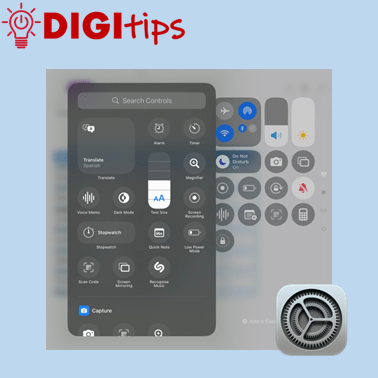
This Digitip explains how you can adapt pre-made wallpapers as well as create your own from scratch, adding the personal touch to your iPad. Explore some exciting new options for creativity, ease of use and design. There are lots of possibilities for use in the classroom, such as a quick morning starter activity or as…
-
Flyover in Apple Maps
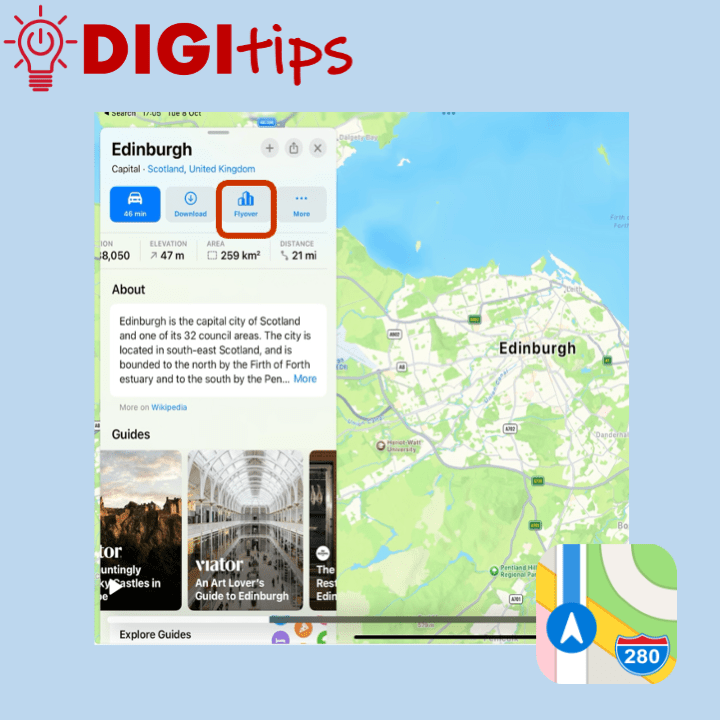
This Digitip explains how to access the flyover feature in Apple Maps. In addition it looks at using maps as a replacement for Google Earth. Apple Maps has a feature called flyover, this allows the user to see a ‘drone type‘ view of special landmarks in a city. The cities that have flyovers can be…
-
Customise Your Control Centre with iOS 18
This Digitip explains how to customise your Control Centre and prioritise the apps that you and your learners regularly use. The new iOS 18 update allows staff and learners to easily use accessibility features such as visual display settings, hearing accessibility features, and also motor accessibility tools. You can also add in handy features including…
-
Adding a Shared Admin Calendar to Outlook (iPad & PC)
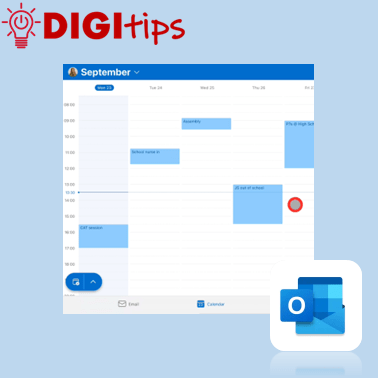
This Digitip explains how to add your school’s admin calendar to your own Outlook app. A helpful approach to reduce printing, have a live up-to-date calendar, and support good communication across a school. Watch the video
-
Create a Quick Video with Live Photos
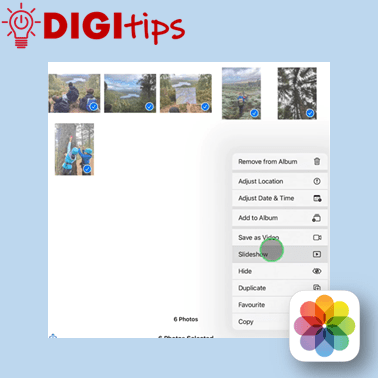
This Digitip explains how to create an automatically edited video using Live Photos from your camera roll on your iPad. This is a useful tool for quickly sharing the day’s learning with the class, recording a school trip or whole school event. Watch the video
-
Extract Audio from Video with Shortcuts

This Digitip will show you how to extract the audio from a video with a simple shortcut. This is great if you want to change the visuals of a video but maintain the audio. You might create a scaffold for learners and then ask them to use your audio but change the images to show…
-
Using the Photo Editing Tools on Your iPad

This Digitip will show you how to use the various photo editing features that are available on your iPad. This is a useful function for making photos stand out, cropping and focussing on key elements, and enhancing creativity. Watch the video
-
Changing text size on your iPad
This Digitip will show you how to quickly change dynamic text and bold menu texts on your iPad. A really useful function for many users. Watch the video
 Edinburgh Learns Digital | City of Edinburgh Council