-
Online Skill Course: Enhancing Teaching & Learning with ClickView
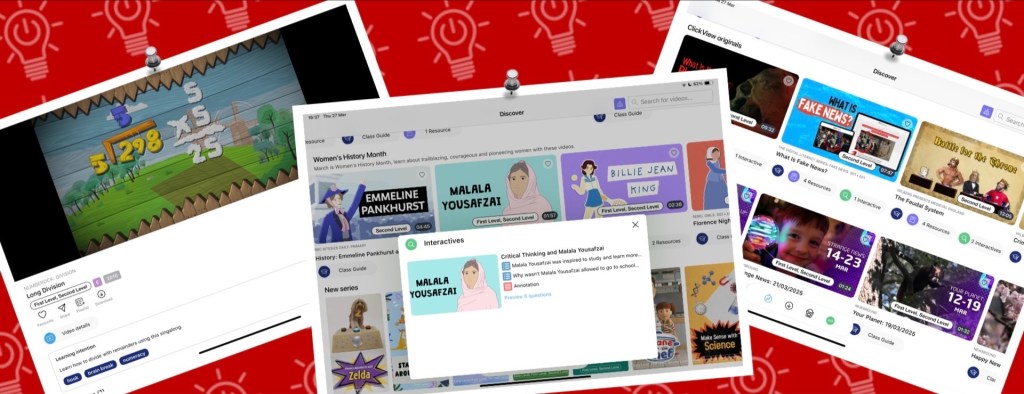
ClickView offers a range of features to enhance teaching and learning in our classrooms, whether by supporting learners with engaging, specially curated pre-made video content, hosting our own educational videos, or assessing understanding through interactive quizzes. Through the iPad app or a web browser, ClickView is a secure and ad-free resource that can seamlessly be…
-
Schedule Posts on Teams
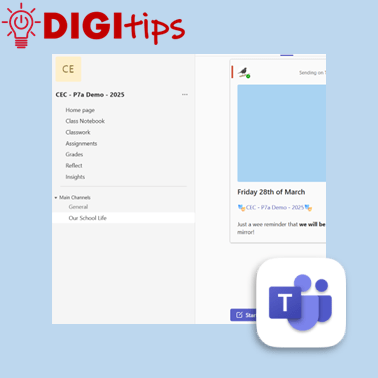
Another quick and easy Digitip, demonstrating how to schedule a post on your staff or class Team. This feature means that you can plan ahead, scheduling a post ahead of time and freeing up your headspace for something else! Find this feature on the desktop/laptop app or through the browser. Watch the video
-
Creating custom shapes in Keynote
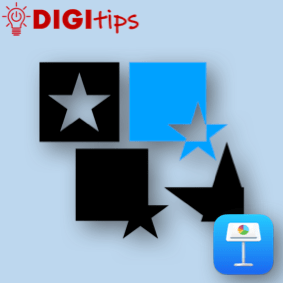
In this digitip, learn how to create custom shapes in Keynote and add them to your own shapes library. This step-by-step guide shows you how to create your own custom shapes, save them to your shapes library and then use them in a presentation. Once you have done this in Keynote you can do the…
-
Microsoft Learning Accelerators – Maths Progress
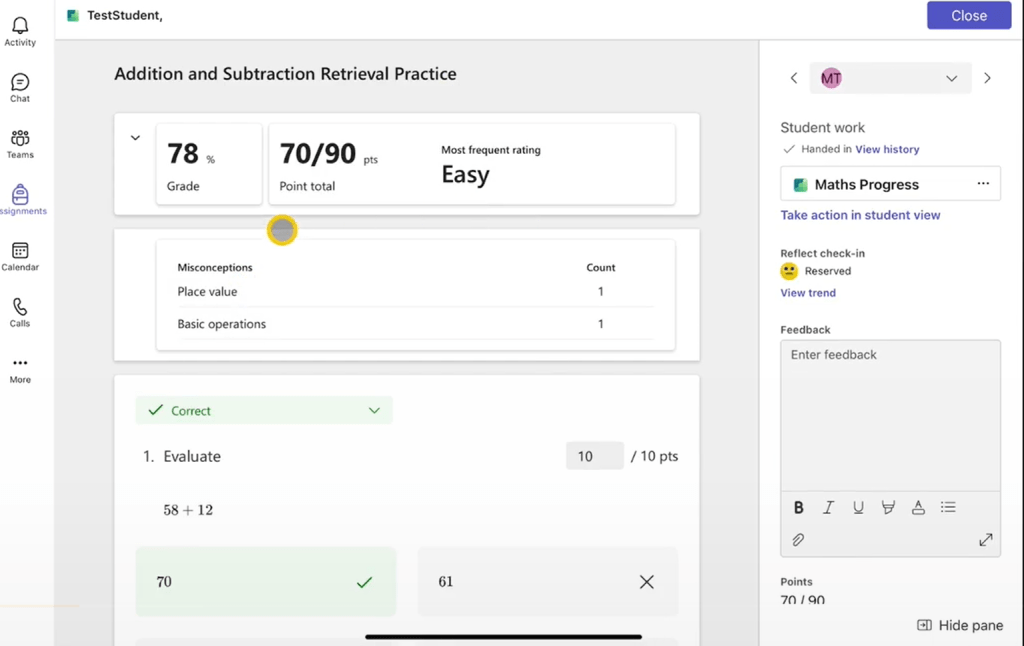
Microsoft continues to build its suite of Learning Accelerators to support teaching and learning with their new feature Maths Progress. Maths Progress allows teachers to generate a series of maths questions and create their own, making it a valuable tool for colleagues across Edinburgh schools. You can watch our video series exploring the Maths Progress…
-
Creating a Quick Links Toolbox in OneNote & Saving Websites to the Home Screen
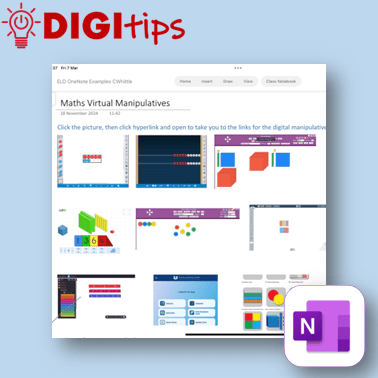
In this digitip, learn how to create a quick-access page of resource links in OneNote/Class Notebook for your learners. This step-by-step guide shows you how to take screenshots of websites, insert them into OneNote, and add hyperlinks—making it easy for learners to access key tools anytime from the Content Library. The example uses virtual maths…
-
Launching our Digital Learning Units
What are Digital Learning Units? Digital Learning Units are designed so that you have access to teacher produced, ready to use digital resources. These contain teacher instructions, guided videos and structured pupil pages, ready to be copied to your Class Notebooks. These have been designed to be delivered by a teacher to a whole class…
-
Rehearse with Coach on PowerPoint
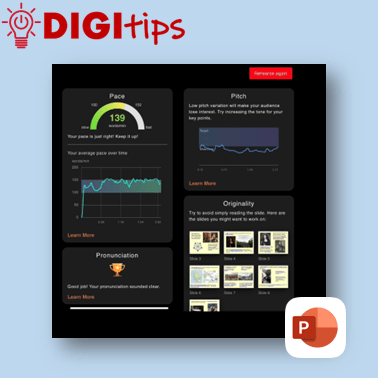
A quick and easy Digitip, demonstrating how to use the ‘Rehearse with Coach’ feature available through PowerPoint on the iPad. This is a handy feature that gives learners direct specific feedback about their delivery of content through PowerPoint. This can support learners when preparing for class talks or sharing their learning, giving them handy prompts…
-
Tab Groups on Safari
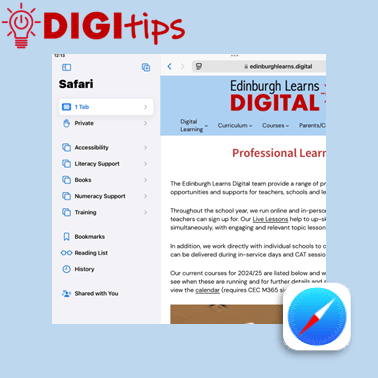
A quick and easy Digitip, demonstrating how to organise websites into Tab Groups on Safari. Tab Groups are folders that keep tabs (open websites) all in one place, making them easier to find again later. This is a simple way to group together sites to then share with learners or with your staff team. Recorded…
-
ClipChamp on M365
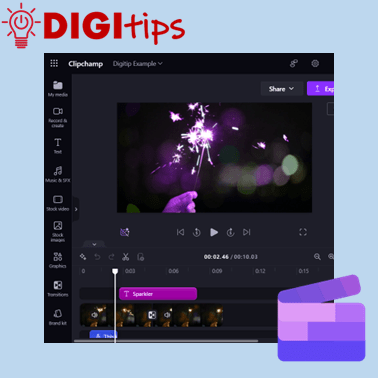
This Digitip will show you how access and use the video editor ClipChamp on Microsoft 365.This video tool replaces the now depreciated Video Editor in Windows. ClipChamp is available for desktop users through Microsoft 365. Watch the video
-
Safer Internet Day 2025
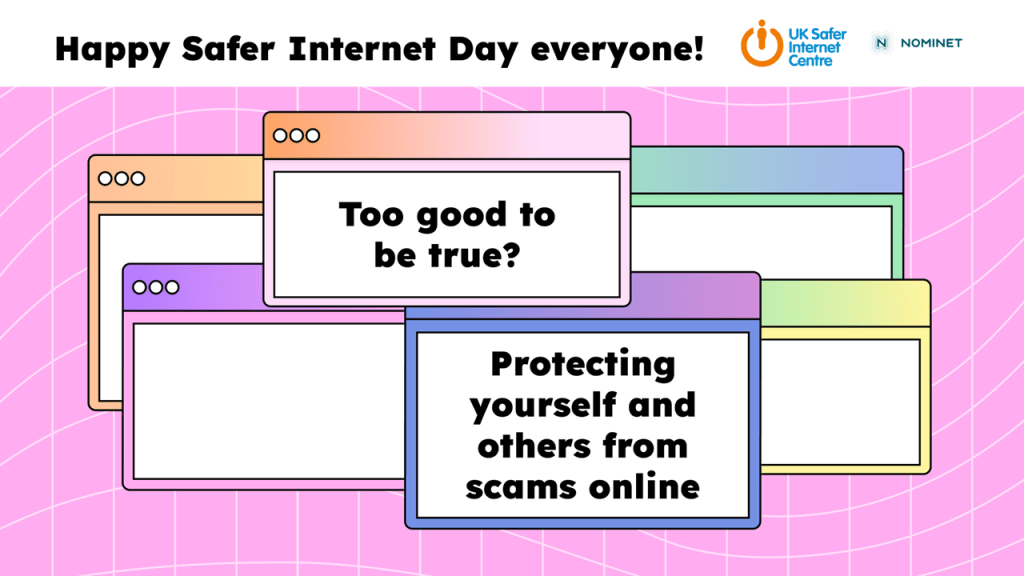
Given that Safer Internet Day falls on the February break for us here in Edinburgh, we wanted to make sure that our learners still had the opportunity to join in, and they really did – over 200 classes across the city! The theme this year is Too good to be true? Protecting yourself and others from…
-
Copy Printed Text to Immersive Reader with the Camera App
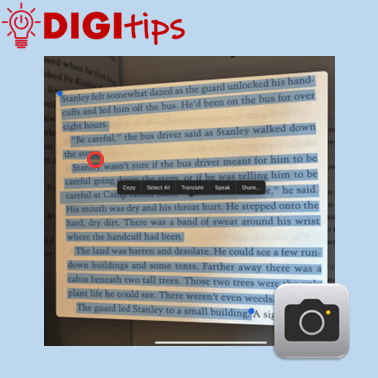
This Digitip shows you how to use the Camera app to copy printed text into Immersive Reader In this quick video, you’ll learn how to use the Camera app’s Live Text feature to copy printed text into Immersive Reader. This is a powerful tool for making text more accessible by converting printed or handwritten words…
-
Using Guided Access Mode
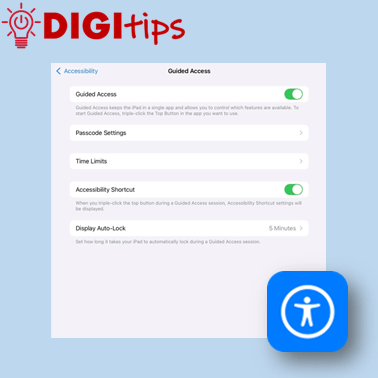
This Digitip shows you how to use Guided Access mode on the iPads. In this quick video, you’ll learn how to set up Guided Access mode. This is a powerful tool for keeping learners focussed by locking them into a specific app. This can be personalised and set up in a way that allows you…
-
Christmas Star Collector – Scratch Game

In this Christmas Cracker, we use Scratch to create a Christmas themed Scratch game. Can you help the snowman to collect all of the stars before being caught by the goblin? This video walks through the steps involved to create the game from adding sprites to coding them. The code guide provided below can be…
-
Christmas Scratch & Reveal
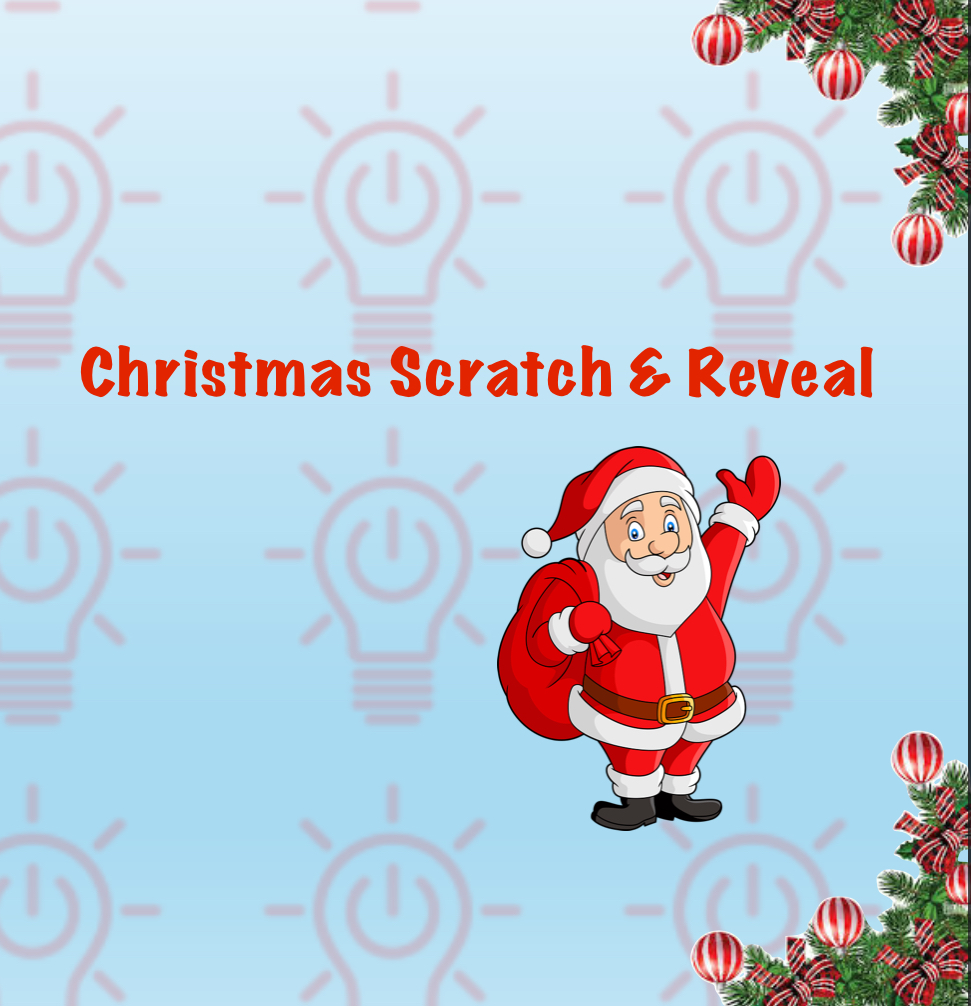
In this Christmas Cracker, we’ll use Keynote to create a Christmas scratch & reveal game. This video shows you the steps of creating your game using all the shapes and drawing tools including layering the images so that you can play a game to reveal Santa. Watch the video Christmas Cracker Resources View all Christmas…
-
Xmas Animation
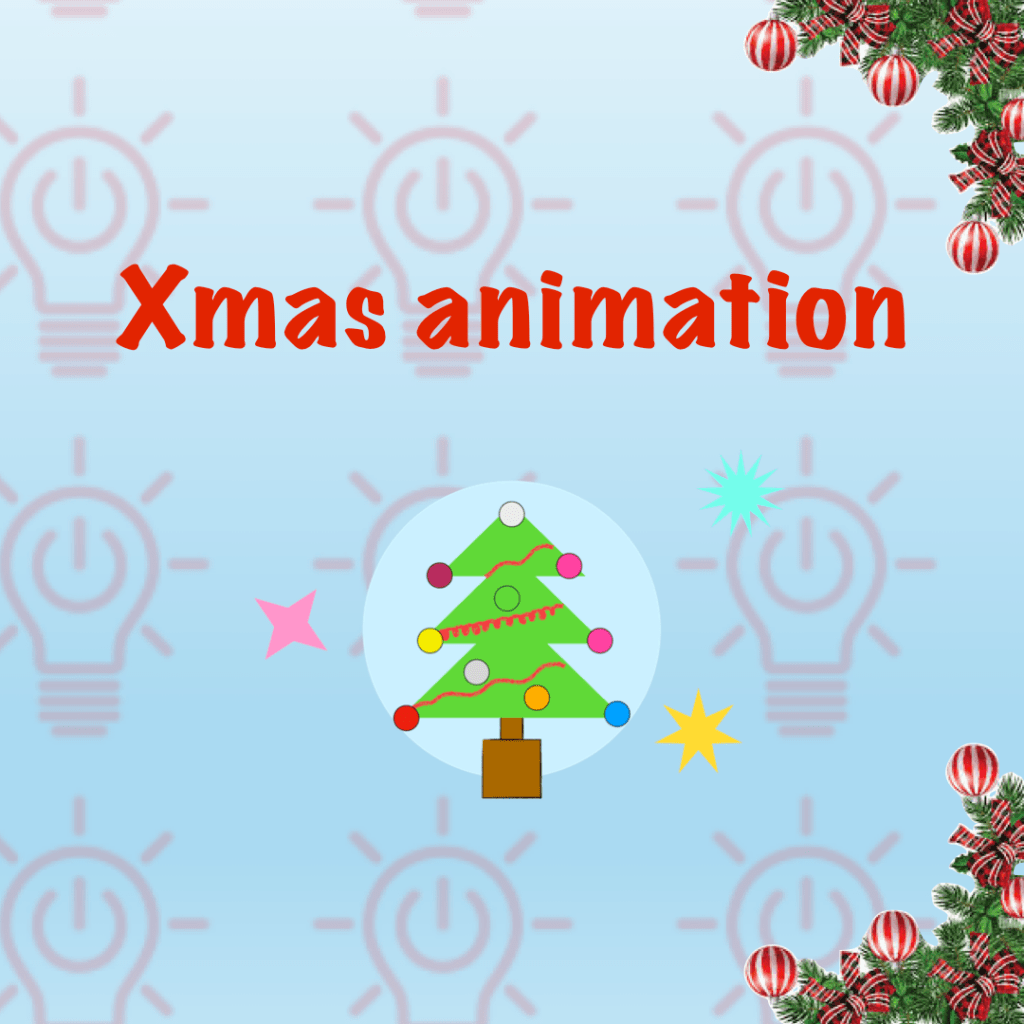
In this Christmas Cracker, we’ll use Keynote to create a christmas tree animation. This video shows you the steps of creating your tree using all the shapes and drawing tools then creating a frame by frame animation with duplication and editing. Finish your animation off by exporting it as a GIF you can share. Watch…
-
We Wish You a Merry Christmas on micro:bit

In this Christmas Cracker, you will learn how to code a micro:bit to play the festive tune, “We Wish You a Merry Christmas” on your iPad. This is compatible with both 1:1 and Shared iPads and will require a micro:bit. Watch the video Christmas Crackers Resources
-
Symmetry Snowflakes on Sketchbook
In this Christmas Cracker, you will learn how to use the symmetry tool in the Sketchbook app to create beautifully intricate snowflake drawings. Each and every one unique! Watch the video
-
Jingle Bells
In this Christmas Cracker pupils will learn how to create the Christmas classic Jingle Bells with GarageBand. The video goes through the instructions step by step but there are additional resources on this Pages document that might help, you can also tap the picture below to download the document. Watch the video.
-
Create a Festive Quiz

In this Christmas Cracker pupils will learn how to use Keynote to create an interactive festive quiz using links and animations. Learners may want to prepare around ten multiple choice questions and answers or work in small groups to do so. You can find some of the additional resources here, however, learners are welcome to…
-
Christmas Around the World

In this Christmas Cracker pupils will learn how to use the more advanced animation tools in Keynote. Watch the video.

 Edinburgh Learns Digital | City of Edinburgh Council