
Tag: Digi-Teacher
-
Create a Quick Video with Live Photos
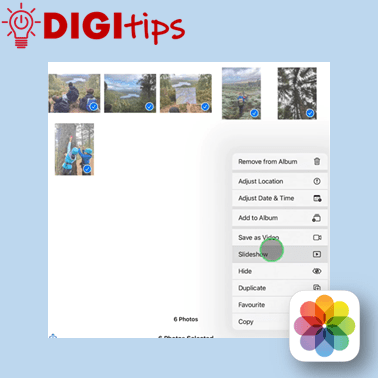
Read more: Create a Quick Video with Live PhotosThis Digitip explains how to create an automatically edited video using Live Photos from your camera roll on your iPad. This is a useful tool for quickly sharing the day’s learning with the class, recording a school trip or whole school event. Watch the video
-
Extract Audio from Video with Shortcuts
Read more: Extract Audio from Video with ShortcutsThis Digitip will show you how to extract the audio from a video with a simple shortcut. This is great if you want to change the visuals of a video but maintain the audio. You might create a scaffold for learners and then ask them to use your audio but change the images to show…

-
Using the Photo Editing Tools on Your iPad
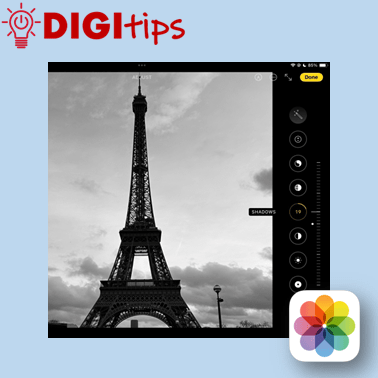
Read more: Using the Photo Editing Tools on Your iPadThis Digitip will show you how to use the various photo editing features that are available on your iPad. This is a useful function for making photos stand out, cropping and focussing on key elements, and enhancing creativity. Watch the video
-
Changing text size on your iPad
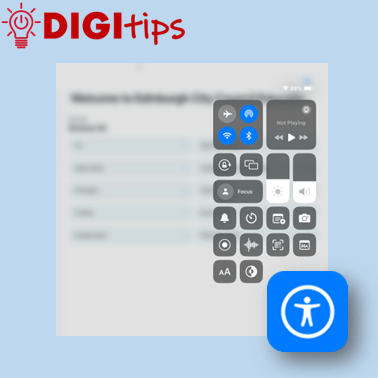
Read more: Changing text size on your iPadThis Digitip will show you how to quickly change dynamic text and bold menu texts on your iPad. A really useful function for many users. Watch the video
-
Syncing your online folders to your PC
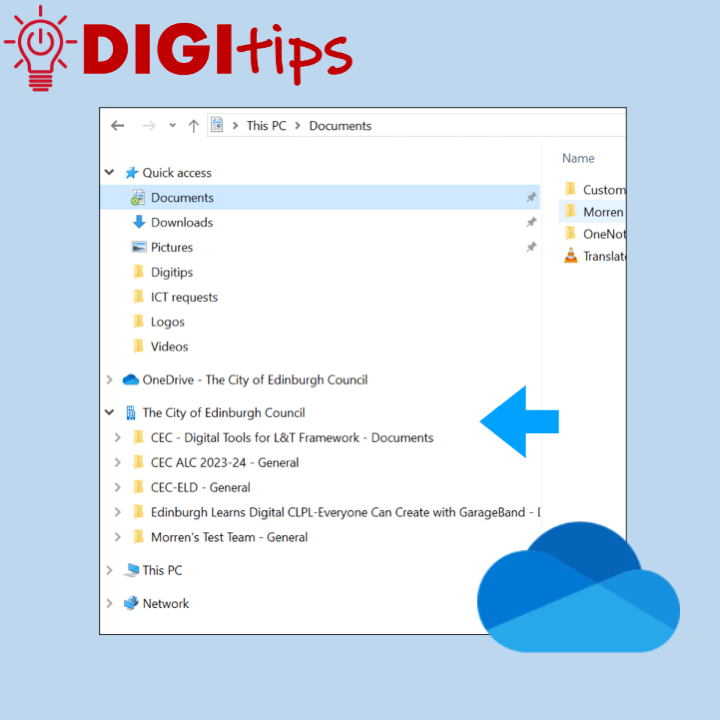
Read more: Syncing your online folders to your PCThis Digitip looks at helping you streamline your workflow by syncing online Sharepoint or teams folders directly to your PC. OneNote is a great tool that will allow you to access all of your content and documents on any device. If you are using a laptop you can speed up access to all of your…
-
Using Safari’s Built-In Reader Tools
Read more: Using Safari’s Built-In Reader ToolsThis Digitip looks at using the built-in accessibility functions found in Apple’s Safari web-browser. The Reader tool is a fantastic way to streamline a web page and focus on essential content. This gives learners the option to personalise with features including changing font size, page colour and font. This feature is also a useful way…

-
Add Background Sounds to your iPad
Read more: Add Background Sounds to your iPadThis Digitip will show you how to add background sounds to your control centre on your iPad, giving you options of white noise, ocean sounds and more. You may find it useful to use if you have to concentrate on a piece of work for a long period of time. Watch the video
-
Voiceover and subtitles in Clips
Read more: Voiceover and subtitles in ClipsThis Digitip will show you how put a voiceover and subtitles on an image or video using Clips A great tool for learners to show and explain their learning. Watch the video
-
Using timers on your iPad
Read more: Using timers on your iPadThis Digitip will show you how to make timers quickly on your iPad. A great tool for in the classroom or in personal planning. Watch the video

-
Using the Drag and Drop Feature to Take Notes
Read more: Using the Drag and Drop Feature to Take NotesUse the iPad’s drag and drop features to quickly take notes between Safari and numerous word processing apps. This is a great way to quickly take notes when completing a research task. Learners can select and hold onto any content that it is useful and then navigate to their favourite notetaking app to record the…

-
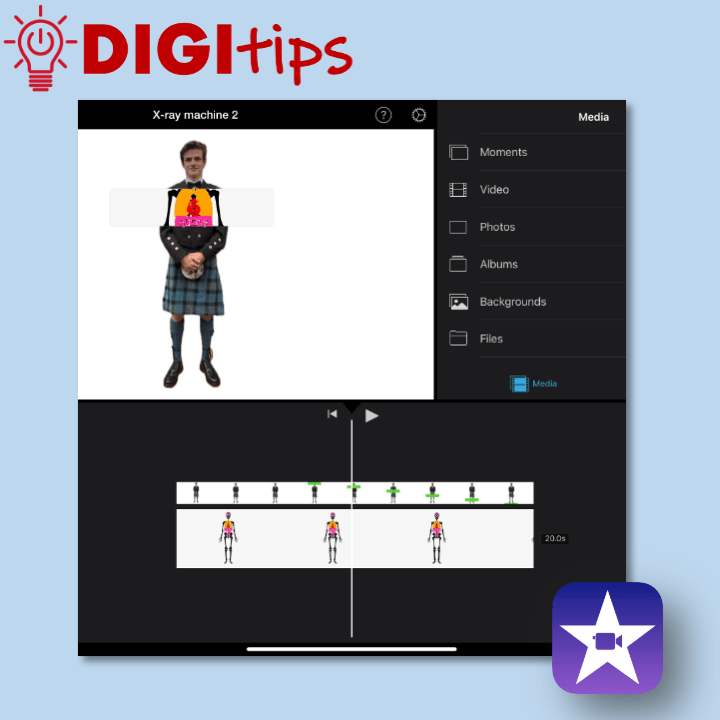
Use Keynote and iMovie to create an X-ray machine – Part two
Read more: Use Keynote and iMovie to create an X-ray machine – Part twoThis is a great way to use green screen effects without having access to a green screen. What interesting ideas could you use this technique to show? This is part two of a two part Digitip: X-ray machine – iMovie Watch the video
-
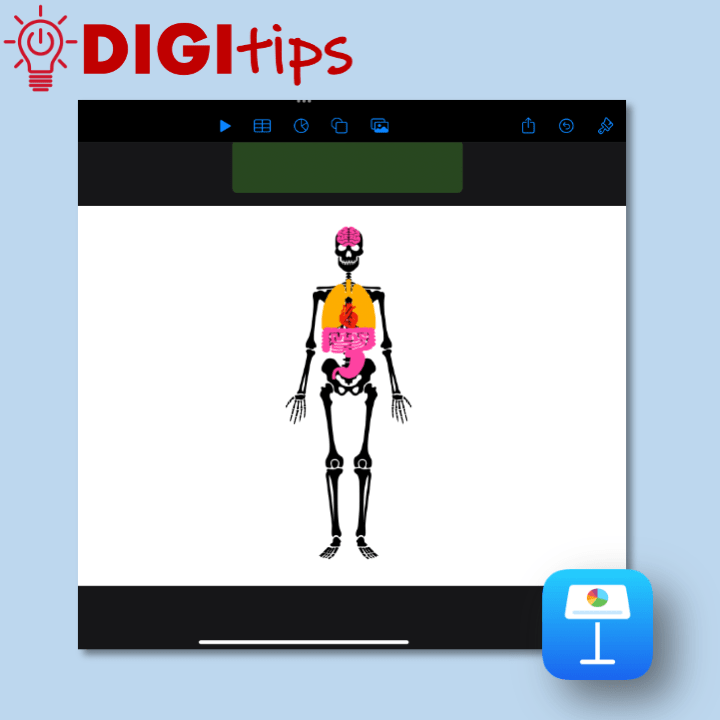
Use Keynote and iMovie to create an X-ray machine – Part one
Read more: Use Keynote and iMovie to create an X-ray machine – Part oneThis is a great way to use green screen effects without having access to a green screen. What interesting ideas could you use this technique to show? This is part one of a two part Digitip: X-ray machine – Keynote Watch the video
-
Add live video to your Keynote Presentation
Read more: Add live video to your Keynote PresentationCreate and share a presentation with added live video. This video shows you how to use the Live Video feature in Apple Keynote. This could be great for teachers to create help videos or for students to use when presenting to the class. Watch the video

-
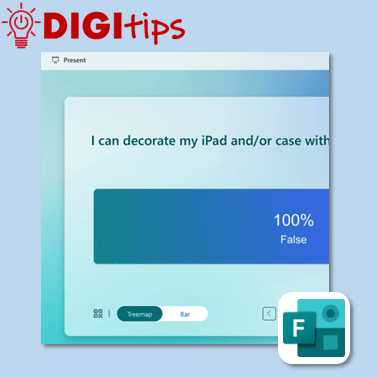
Use the Present feature on Microsoft Forms
Read more: Use the Present feature on Microsoft FormsShare Microsoft Form or Quiz results with your class in a visual and engaging way. This video shows you how to use the Present feature in Microsoft forms, allowing for an engaging way to give feedback and clarity to the topic. Watch the video
-
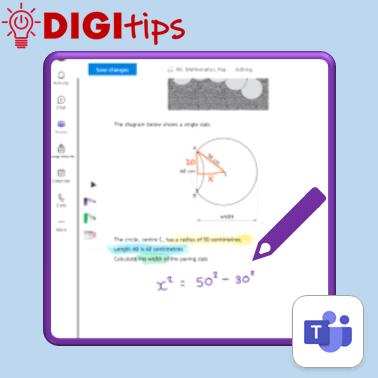
Annotate a PDF in Teams assignments
Read more: Annotate a PDF in Teams assignmentsCreate an assignment in which pupils can annotate on top of a PDF. This video shows you how to create an assignment that allows pupils to ‘edit’ a PDF and allows teachers to give annotated feedback. Watch the video
-
Creating an infographic using Keynote
Read more: Creating an infographic using KeynoteCreate an infographic in Keynote using the shape, text and animate tools. This video shows you how to create an infographic in Keynote. An infographic is a visual representation of data and information that can be used for learners to showcase their knowledge and understanding of a specific topic. The video explores how to deconstruct…

-
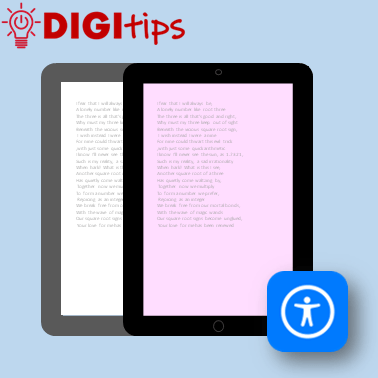
Toggle Colour Filter to create a digital overlay
Read more: Toggle Colour Filter to create a digital overlayCreate a digital overlay for your iPad that you can turn on and off as you please. This video shows you how to turn on the Colour Filter inside Accessibility settings of your iPad and utilise the Accessibility shortcut to toggle the filter on and off. Watch the video
-
Creating a check-in using Microsoft Teams Reflect
Read more: Creating a check-in using Microsoft Teams ReflectCreate health and wellbeing check-ins for your class using the Reflect feature on Microsoft Teams. This video also explores how to use the health and wellbeing/mindfulness features available through Reflect. Watch the video

-
Create stickers on the Photos app
Read more: Create stickers on the Photos appQuickly create stickers on the Photos app on your iPad and apply them across other apps in your library (uploaded Dec 2023) Watch the video

-
Create a QR code on your iPad
Read more: Create a QR code on your iPadQuickly create and share QR codes using your iPad This video shows you how you can use Microsoft Edge on your iPad to create a QR code and share it in your presentation using the Microsoft 365 app Watch the video

 Edinburgh Learns Digital | City of Edinburgh Council